
Payments & Transactions


Profile & Accounts

Privacy & Security

Get Started with Nello Pay

Sign up and test Nello Pay in Sandbox quickly and easily before making any commitment. Follow the steps below to get started.
Existing customers: We have updated our Merchant Portal to include direct access to a new integrated Sandbox environment, in addition to the existing Production environment.
- Any current testing in the separate Sandbox environment, using existing API keys and webhook endpoints, can continue until September 30, 2026.
- Any new testing can be done through the new Sandbox in the Merchant Portal following the guidelines below.
- Existing Production integrations will not be affected in any way.
Step 1 – Sign up
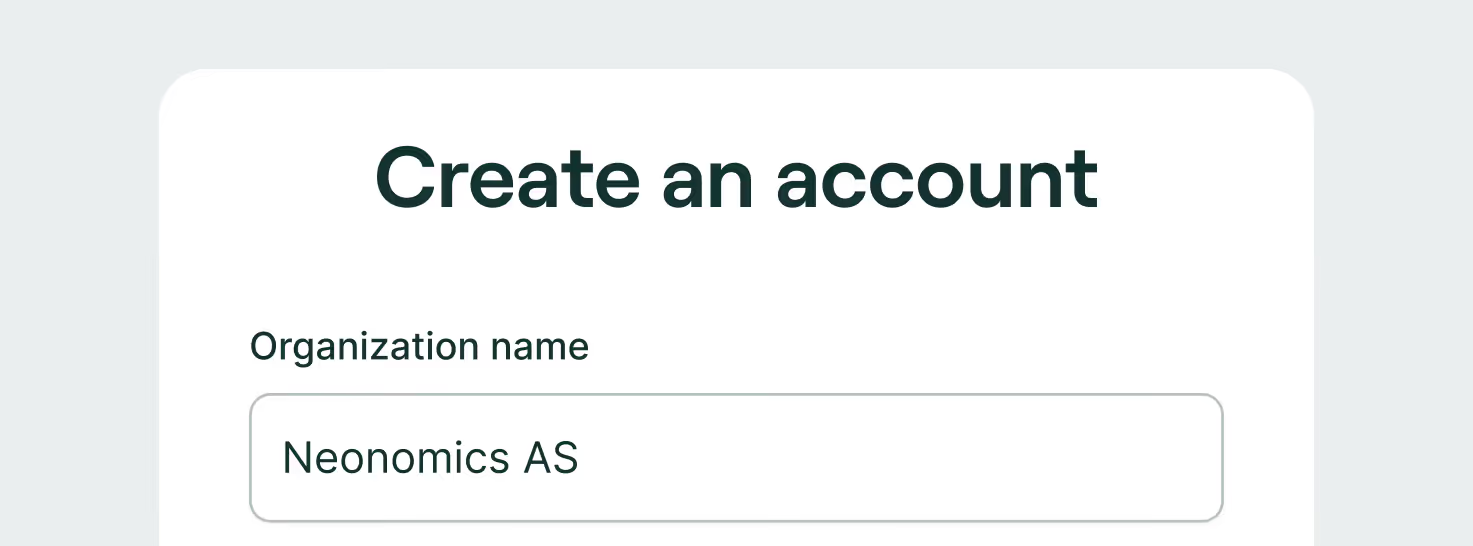
To get started testing Nello Pay in Sandbox, click on the Get Started button on the Nello Pay or Nello Pay product demo pages on our website, or simply follow this link: Merchant Portal Get Started
- To sign up, simply fill in the required fields, create a password and click the “Create account” button.
- Verify your email. You will receive an email to confirm your account. Click “Verify email address button” to confirm your account and click the link to return to the login page of the Merchant Portal. Email verification is required to proceed.
- Sign into your account using your email and password.
Step 2 - Integrate with Sandbox
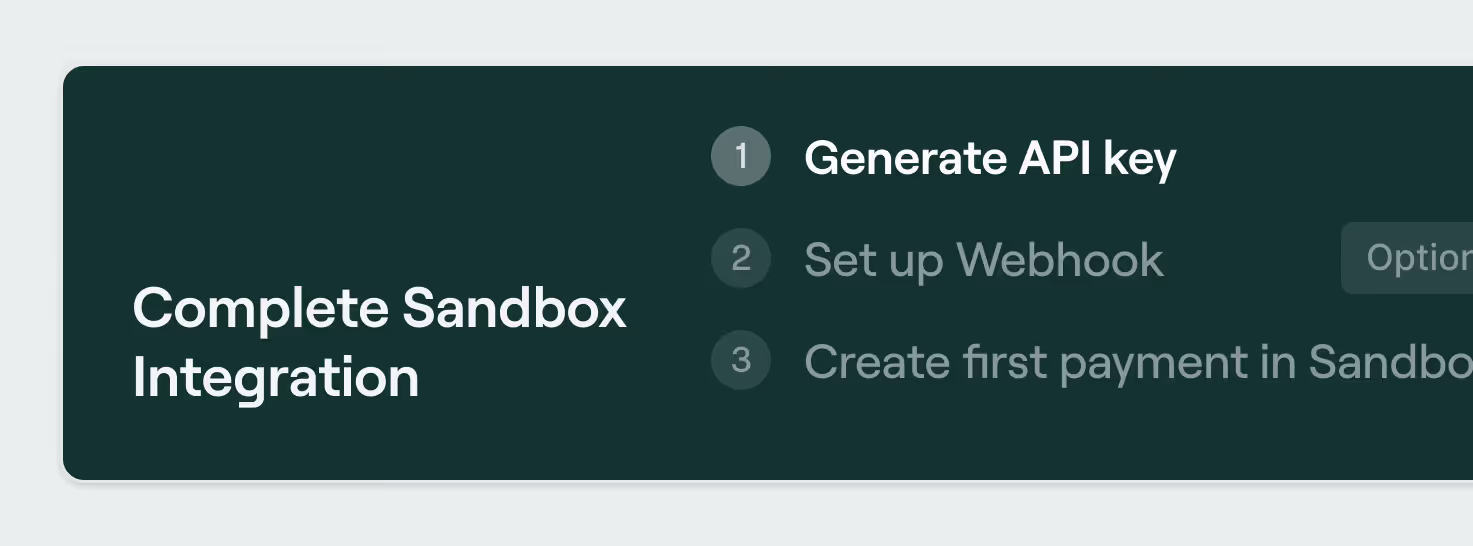
This will take you to the Neonomics Sandbox where you can start integrating.
- Generate an API Key: Click Company Settings on Sandbox dashboard page, on the "Integration" tab, follow the documentation instructions.
- Optional: Set up the webhook. If you wish to use a webhook, you can set this up as well in the "Company settings" page, under the "Webhook" tab. Follow the documentation instructions.
- Create your first payment: Return to the Sandbox Dashboard and click on the link to “Create your first payment” and follow the documentation instructions.
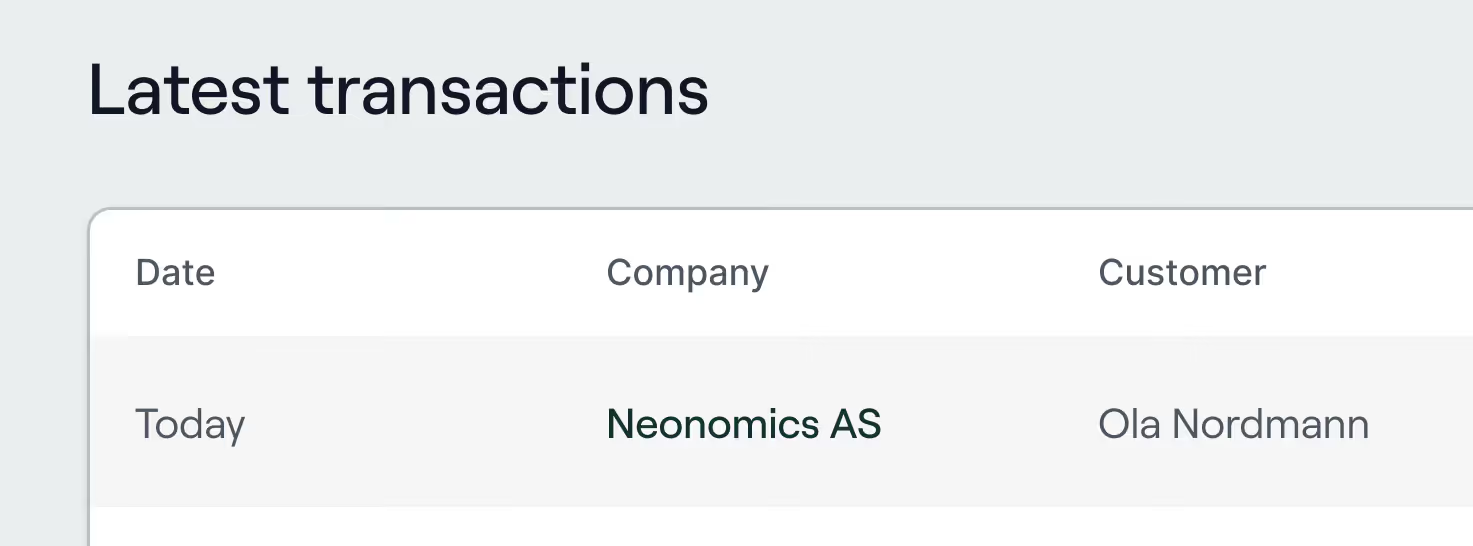
You can now proceed with testing payments. You can see and track the payment status of your test payments under "Latest transactions".
Step 3 – Go Live
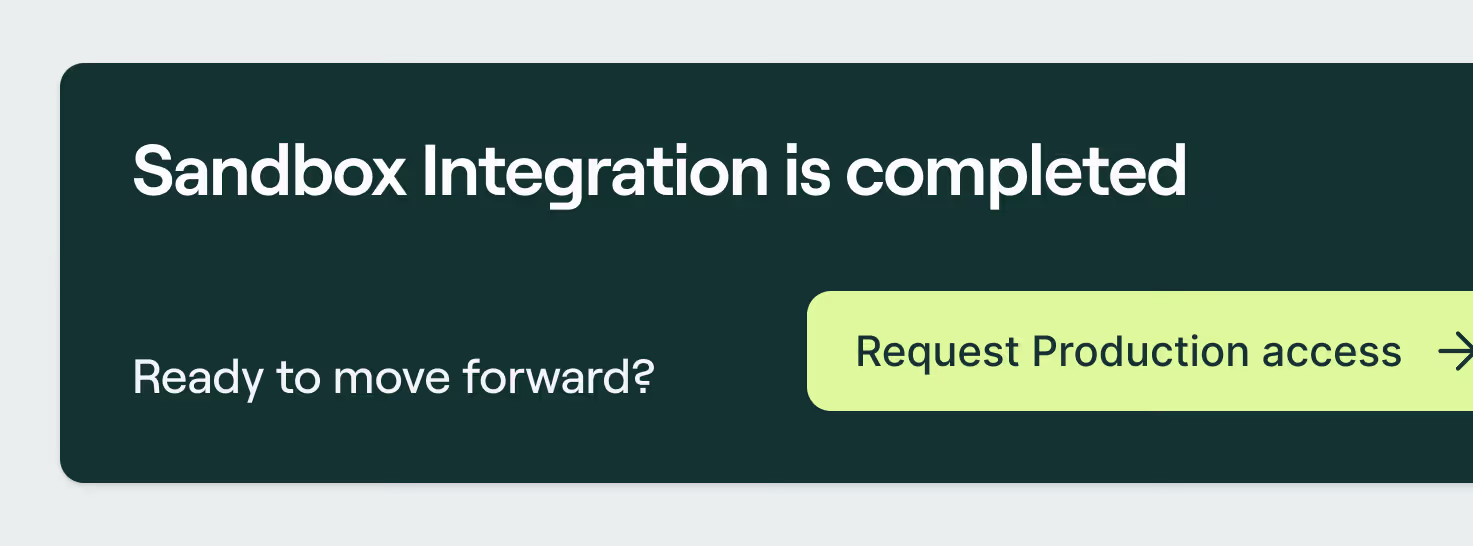
When you are ready to move forward and make live payments available in your payment interface, request Production access. From the Dashboard, click the button to request Production access. This will open the onboarding application flow. Click “Get started” and follow the steps.
- Select payment features: Select the features you would like to include in your service. Add-on and customization features have an additional monthly cost on top of the Base plan. You can review pricing here. Click on the features you would like to include. When selected, the feature card will appear highlighted in black with a checkbox symbol in the upper right corner. Then, click the “Next” button.
- Review the Service Agreement: Review the Service Agreement. You will not be required to sign the agreement until your application is approved.
- Due Diligence: Provide the required company information. You can save the information as you go and go back, and review as needed. Once all the fields are complete, click the “Confirm and submit” button to submit your application.
You will now see in the Sandbox dashboard that your application is being reviewed. If there are any issues, our Compliance or Sales team will contact you. Once approved, you will receive a contract by email to sign.
Once the signed contract is received, you will be granted access to both Sandbox and Production in the Merchant Portal. Follow the Production integration steps (similar to Sandbox integration steps).
- Integrate: follow the same integration steps you did in the Sandbox, in the Production environment.
- Generate an API Key: Select Production in the side menu drop down. This will take you to the Production dashboard. Click “Company Settings” and on the "Integration" tab, follow the documentation instructions.
- Set up the webhook (optional): If you wish to use a webhook, you can set this up as well in the "Company settings" page, under the "Webhook" tab. Follow the documentation instructions.
- Integrate Nello Pay: Return to the Production Dashboard and click on the link to “Integrate with Nello Pay” and follow the documentation instructions.
- Design toolkit: Our UX/UI experts have created a useful brand guidelines and toolkit to provide your customers with a consistent and recognizable customer journey easily: Brand Guidelines
You can now proceed with live payments.
Was this helpful?


.avif)


